

Best Ergonomic Home and Office Work Setup: Complete Ergonomic Desk Setup Guide
Introduction: Why Your Ergonomic Desk Setup Matters Today
Since 2020, remote work and hybrid arrangements have turned dining tables, bedrooms, and cramped home desks into full-time workstations. A U.S. survey found workers spend an average of $268 improving their home office, yet half still report pain severe enough to reconsider going fully remote. Poor workspace arrangements can lead to wrist strain, headaches, neck pain, shoulder tension, and afternoon fatigue that chips away at output hour by hour.
The numbers back this up. Proper ergonomics reduces musculoskeletal disorders by 60%, and ergonomic setups can increase productivity by 20%. Creating an optimal ergonomic workspace reduces strain and boosts productivity at the same time. Ergonomics also improves employee morale and reduces sickness absence, which matters whether you work from a corporate tower or an HDB flat.
An ergonomic setup means arranging your chair, desk, monitor, keyboard, and lighting so your body stays in a neutral, low-strain posture throughout the day. A proper workstation setup boosts focus and efficiency because your body stops fighting the furniture and starts working with it.
Ergoworks is a Singapore-based ergonomic specialist providing ergonomic chairs, standing desks, monitor arms, mobile workstations, and corporate ergonomic advisory services. This article gives step-by-step guidance to create a comfortable and efficient workspace, whether you are outfitting a dedicated workspace at home or rolling out a productive work environment across an entire office floor.
Ergonomic Principles 101: The Neutral Posture Blueprint
Ergonomic principles are the foundation of any ergonomic home office or corporate ergonomic workstation. The core idea is neutral posture: aligning your body so joints rest at angles that place the least stress on muscles, tendons, and nerves.
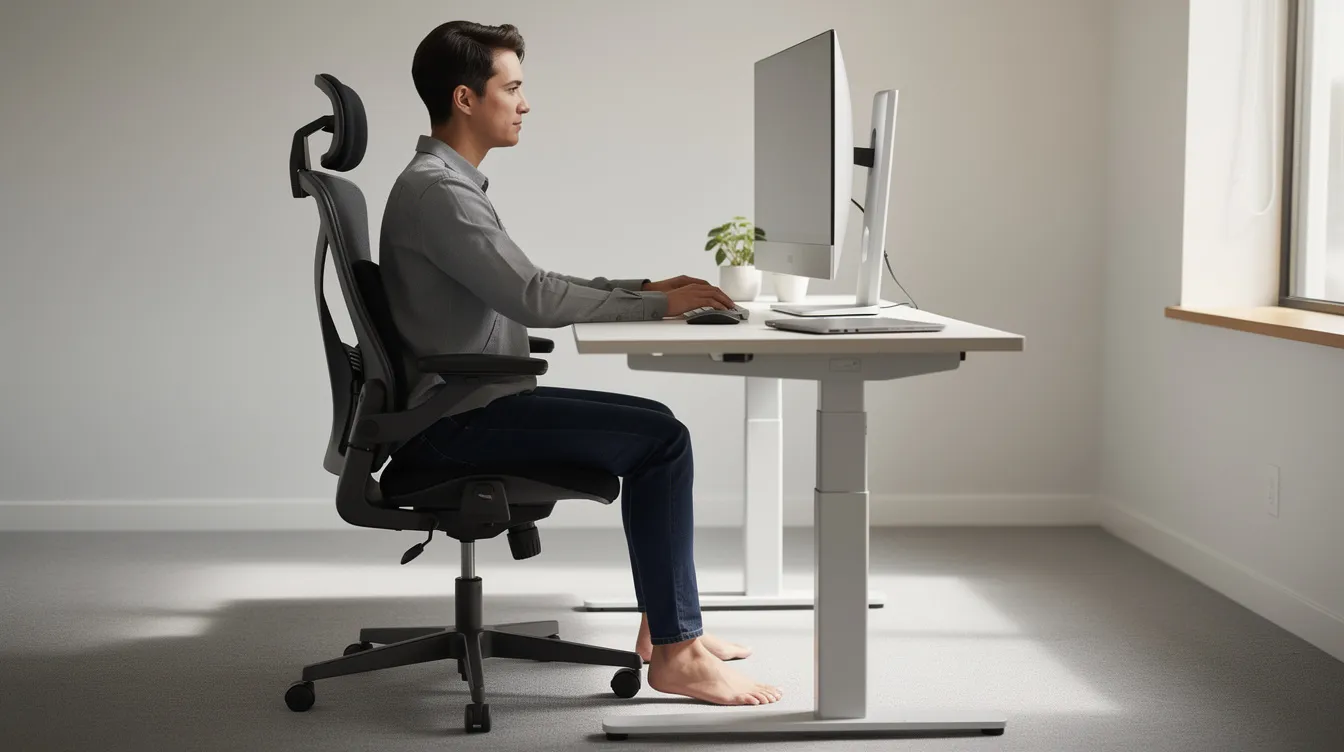
Neutral posture looks like this: ears stacked over shoulders, shoulders relaxed and level, elbows bent at roughly 90 degrees, wrists straight, hips slightly above knees, and feet fully supported. Ergonomic setups require adjustable furniture to maintain neutral body postures because no single fixed position fits every person.
Sitting guidance:
- Hips open to about 100–110 degrees, lower back supported by the chair.
- Thighs parallel to the floor with a slight downward slope toward the knees.
- Maintain a knee angle of 90 degrees when seated in a chair.
- Elbows should be bent at a 90-degree angle when typing.
Standing guidance:
- Weight evenly distributed on both feet.
- Micro-shifts of weight and small steps throughout the standing period.
- Anti-fatigue mat under standing positions to reduce lower-limb fatigue.
"Perfect posture" is dynamic. Lock yourself into any single pose for an hour and discomfort follows. The goal is frequent micro-movements and position changes, not a rigid statue at the desk.
Choosing the Right Ergonomic Office Chair
An ergonomic office chair controls pelvis and spine alignment for hours at a time, making it the single most impactful piece of ergonomic furniture in your setup.
Essential features of the best office chairs:
- Adjustable chair height: An ergonomic chair should have adjustable height starting from about 17.5 inches (44 cm), scaling up to roughly 52 cm depending on the user. Adjust chair height so feet rest flat on the floor.
- Adjustable lumbar support: Ensure the backrest of your chair supports the natural curve of your spine. Ergonomic chairs support the natural "S" curve of your spine, and proper lumbar support in chairs can make a significant difference in daily comfort.
- Seat depth adjustment: Leave 2–3 fingers' width between the front edge of the seat and the back of your knees.
- Adjustable armrests: Height and width adjustable so elbows stay at roughly 90 degrees and shoulders relaxed.
- Tilt mechanism: Synchronous or knee-tilt recline between 100–120 degrees to reduce disc pressure.
- Breathable materials: Mesh or high-density foam that supports without trapping heat.
Ergonomic chairs reduce lower back pain by 25%, and adjustable chairs help maintain proper posture and reduce strain over a full workday. Ergoworks provides medical-endorsed ergonomic chairs designed for Asian body dimensions, with seat pan widths and depths suited for users between 150–175 cm tall.
If you are stuck with a non-ergonomic chair, add a separate lumbar cushion targeted at the L3–L4 region and a high-density foam seat cushion. A rolled towel behind the lower back works as a short-term fix until you can upgrade.
Selecting and Positioning an Ergonomic Desk or Sit-Stand Desk
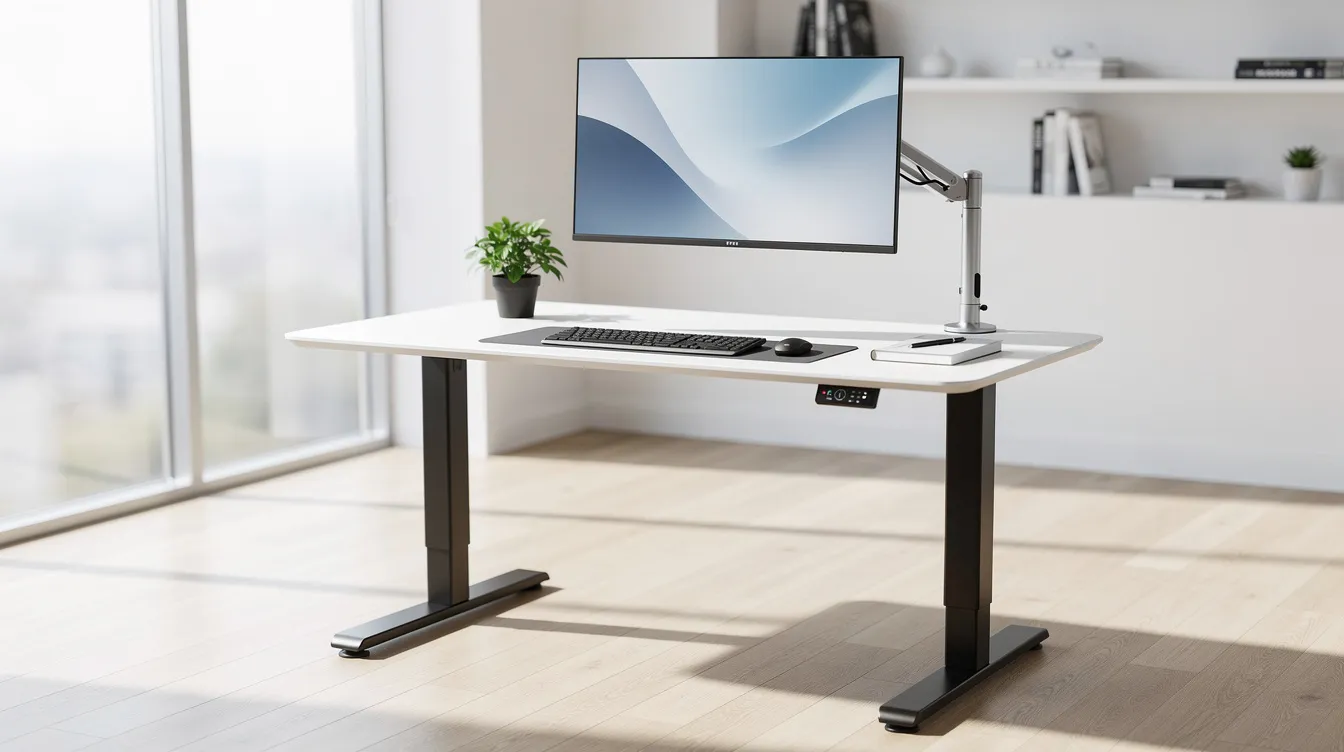
A fixed desk forces your body to adapt to one height. A height-adjustable ergonomic standing desk lets you set desk height precisely and switch between sitting and standing positions throughout the day.
Target heights:
- Proper desk height is 27 inches for sitting (about 68–70 cm), adjusted so forearms are parallel to the floor when typing. Using a keyboard tray can lower your input devices below the desk surface if the desk itself sits higher.
- The ideal height for a standing desk is 43.5 inches (about 110 cm), calibrated so elbows stay at 90 degrees and wrists straight.
Types of ergonomic desks:
- Full electric height-adjustable sit stand desks with memory presets for one-touch switching.
- Manual crank desks, cheaper but slower to adjust.
- A desk converter that sits on top of an existing table, converting it into a sit-stand station.
Adjustable desks allow users to switch between sitting and standing, and that movement matters. Sit-stand desks can lower cardiovascular disease risk by 20%, and adjustable desks can reduce musculoskeletal disorders by 60%. Adjustable desks promote movement and reduce fatigue across a full shift.
Set up your ergonomic desk with at least 60 cm of depth for monitor plus keyboard. Keep the under-desk area clear of CPU towers and storage so legs move freely. Chamfered or rounded front edges, or a desk pad, reduce contact stress on forearms. For shared or hot-desk environments, save presets (1 for sitting, 2 for standing) so each user adjusts in seconds.
Monitor Height and Distance: Protecting Neck and Eyes
Monitor placement is the quickest win in most desk setups. Position the top of your monitor at eye level, or one to two finger widths below, so your gaze angles slightly downward (about 10–15 degrees). Keep your monitor about an arm's length away, typically 50–70 cm depending on screen size.
Adjustable monitor stands can reduce neck strain by 40%. Tilt your monitor back about 3 cm to further reduce neck strain caused by slight upward gaze angles.
Dual monitors:
- If you have one primary monitor and one secondary, place the primary screen directly ahead and the secondary angled 15–30 degrees inward.
- Position dual monitors in a slight V shape for comfort if both screens get equal use, with the seam aligned to your nose.
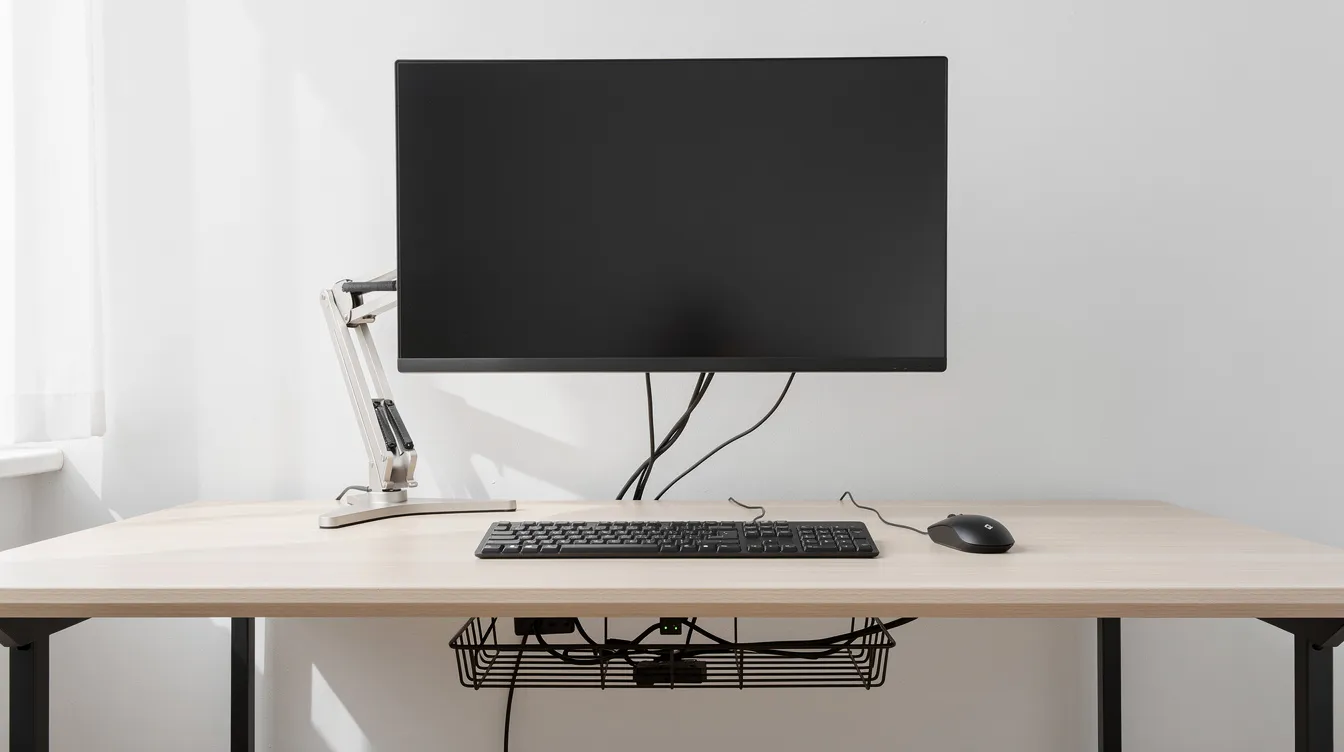
Use a monitor arm for adjustable height and positioning. Monitor arms allow for optimal screen height adjustment and free up valuable space on the desk while improving cable management.
Laptop-specific advice:
- Never work long hours with a laptop screen flat on the desk. The low position forces your neck forward.
- Use a laptop stand or laptop risers to raise the screen to eye level, then add an external keyboard and mouse for proper posture. Compact foldable stands work for tight spaces and travel.
Keyboard, Mouse, and Ergonomic Input Devices
Keyboard and mouse placement drives wrist, elbow, and shoulder strain. Keep wrists in a straight position while using a keyboard and mouse to prevent strain; any upward bend at the wrist compresses the carpal tunnel over time.
Keyboard guidelines:
- Place the keyboard directly in front of you with the G/H keys aligned with the center of your body.
- Keep keyboard height so elbows are at roughly 90 degrees and wrists straight. A keyboard tray mounted under the desk helps if the desk surface is too high.
- Use a slight negative tilt (front edge higher, back edge lower) to keep wrists straight.
- Ergonomic keyboards reduce wrist strain by 50%. A split or compact ergonomic keyboard keeps shoulders relaxed and reduces ulnar deviation. Even a mechanical keyboard with a compact layout can help by eliminating the number pad and bringing the mouse closer.
Mouse guidelines:
- Place the keyboard and mouse on the same level, close together, so you avoid reaching.
- Adjust pointer speed so small hand movements cover the full screen.
- For users with existing wrist pain, vertical mice or trackballs reduce forearm rotation strain.
External keyboards and mice are recommended when using laptops for better ergonomic positioning. If you work from a dining table or co-working space for more than one to two hours, pack an external keyboard, compact mouse, and slim laptop stand as a mobile ergonomic kit.
Chair Height, Footrests, and Lower Body Support
Small tweaks to chair height and leg angles often resolve nagging lower back and hip discomfort that bigger changes miss.
Adjust your chair height so that your feet rest flat on the floor and knees form a 90-degree angle with a slight downward slope from hips to knees. If a fixed desk forces the chair higher than your legs need, raise the chair until forearms are level with the desk, then add a footrest so your feet rest flat. Footrests help maintain proper leg positioning under desks and give shorter users proper support at standard 75 cm dining tables.
During standing desk use, place one foot on a low rail or step (like a bar rail) and alternate sides every few minutes to reduce lumbar tension.
Seat pan and circulation:
- Keep 2–3 fingers' width between the seat edge and the back of your knees.
- A waterfall-edge seat or cushion prevents pressure on the blood vessels behind the knees.
Lower-body micro-movements:
- Change leg position every 20–30 minutes.
- Perform ankle circles and gentle knee extensions while seated.
- Alternate between sitting and standing positions during long tasks to maintain blood flow.
Lighting, Desk Lamps, and Visual Ergonomics
Poor lighting causes headaches, eye strain, and awkward neck postures when you lean forward to read the screen.
- Aim for ambient room light of 300–500 lux, supplemented by a focused task light on documents or the keyboard.
- Use glare-reducing strategies by positioning your desk perpendicular to windows. Avoid overhead downlights that reflect off the screen.
Desk lamps for an ergonomic home office:
- Choose an adjustable-arm LED with dimmable brightness and adjustable colour temperature: 4000–5000K for daytime mental focus, warmer 3000K for evening work.
- Position the lamp on the side opposite your writing hand to avoid shadows.
- Clamp-mount models save valuable space on compact desks in Singapore HDB flats.
Eye-health habits:
- The 20-20-20 rule suggests looking at something 20 feet away for 20 seconds every 20 minutes. This simple practice reduces eye strain and helps maintain focus through long screen sessions.
- Print key documents for extended reading, or use an e-ink display if feasible.
Organising Your Ergonomic Workstation: Layout, Accessories, and Cable Management
Even with a good ergonomic office chair and desk, clutter forces awkward reaching and twisting that undoes your setup.
Desk layout by zone:
- Primary zone (within forearm reach): keyboard, mouse, main writing pad.
- Secondary zone (within full arm reach): phone, docking station, frequently referenced documents.
- Everything else goes on shelves or mobile pedestals to keep the desk surface clear.
Ergonomic accessories:
- A document holder placed between keyboard and monitor reduces neck rotation for heavy typists.
- Wrist rests support neutral wrist positions while typing; use them during pauses, not while actively keying.
- Desk pads soften sharp edges and visually define your workspace.
Cable management:
- Use cable trays, clips, and Velcro ties so cables do not tug when a standing desk changes height.
- No power strips under feet, no cables crossing where chair casters roll.
Keep mobile pedestals to the side so leg clearance stays open. Ergoworks can design full ergonomic workstations and acoustic meeting pods where layout, lighting, and ergonomic furniture integrate into one well designed workspace.
Movement, Micro-Breaks, and Healthy Work Habits
The best ergonomic desk setup cannot compensate for eight hours of total stillness. Movement is part of proper ergonomics.
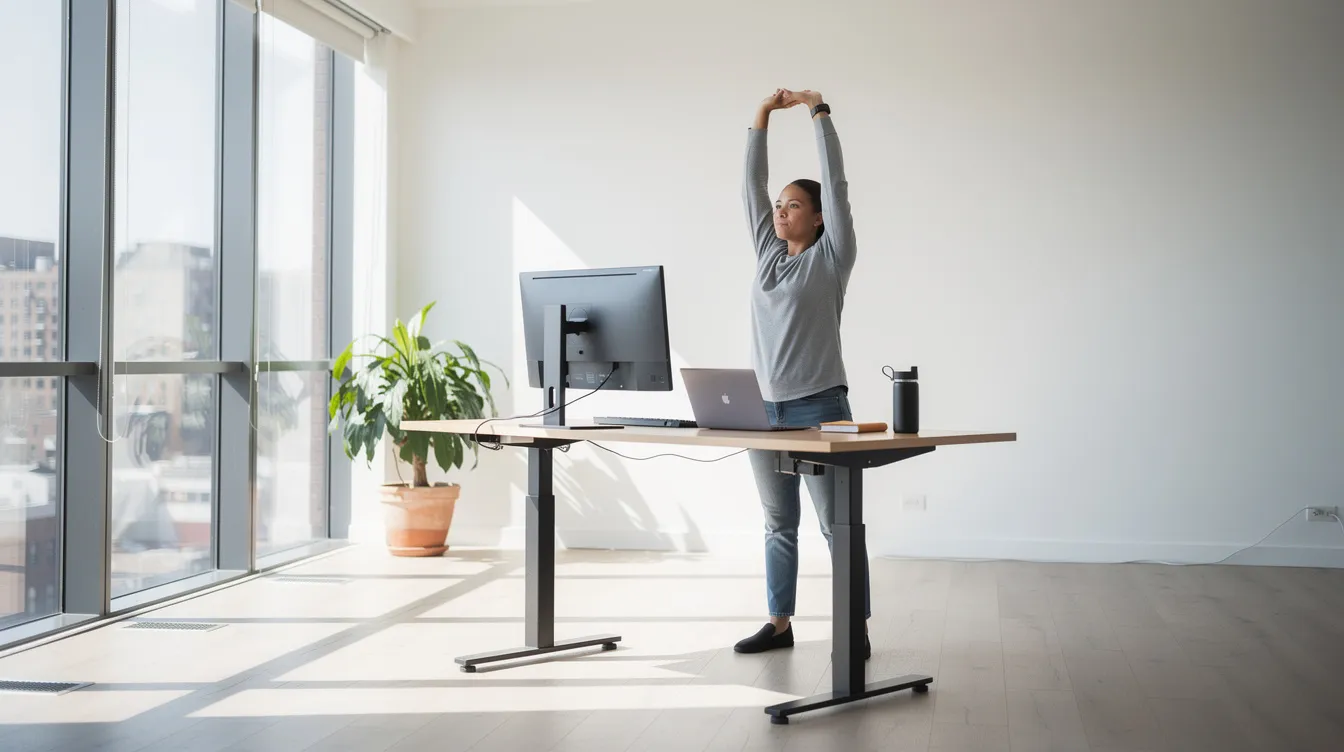
- It's important to alternate between sitting and standing every 30 to 60 minutes. Two to three sit-stand cycles per morning and afternoon is a practical target.
- Take a five-minute break every hour to move. Walk to the kitchen, refill water, or do a quick team check-in standing up.
- Incorporate micro-breaks every 20–30 minutes to shift posture: roll your shoulders, adjust your backrest angle, or slide your hips forward and back.
Take regular breaks to stand, stretch, and improve blood circulation. Movement improves blood flow and reduces stiffness, and regular movement can enhance focus and reduce aches that accumulate through prolonged sitting.
Simple desk stretches:
- Neck rotations (10 seconds each side).
- Chest openers (clasp hands behind back, squeeze shoulder blades).
- Seated hip flexor stretch (shift hips to front of chair, extend one leg back).
- Wrist extensions (press palms together, then reverse).
Ergoworks offers onsite and virtual Ergonomic Talks and workshops that teach correct adjustment and movement strategies. Their AI-enabled posture analysis tools give employees personalised recommendations based on webcam-assessed posture data.
Special Considerations: Small Spaces, Shared Desks, and Remote Teams
Many people in Singapore work from dining tables, bedrooms, or shared co-working desks where office space is limited.
For small home offices:
- Choose compact ergonomic desks (80–100 cm wide) or wall-mounted foldable desks.
- Use a monitor arm clamped to a narrow desk to free up valuable space.
- Wall shelves and pegboards keep ergonomic accessories accessible without crowding the surface. A well designed workspace does not require a large room; it requires the right adjustable furniture in the right arrangement.
For shared or hot-desking environments:
- Post a "reset checklist" at each desk: chair height, desk height, monitor position. Employees should complete all adjustments in under two minutes.
- Colour-coded stickers at recommended height ranges on desk legs help common body sizes find their settings fast.
For remote corporate teams:
- Employers can subsidise pre-approved Ergoworks ergonomic bundles: chair, sit-stand desk, monitor arm, and ergonomic keyboard shipped directly to the employee's home.
- Remote ergonomic assessments via video, combined with self-assessment checklists, bring the benefits of office ergonomics to any remote work location.
- Acoustic pods by Ergoworks combine sound control with ergonomic seating, lighting, and ventilation for focus-intensive tasks, creating an inspiring environment for deep work.
Practical Step-by-Step Checklist: Setting Up Your Ergonomic Home Office Today
This section compresses the article into a linear sequence you can follow in 15–30 minutes. These practical tips apply to both physical health and mental well being.
Step 1: Chair Adjust seat height so feet rest flat on the floor (or on a footrest). Set lumbar support to fit your lower back curve. Position armrests so elbows rest at 90 degrees, shoulders relaxed. You should sit comfortably without slouching or reaching.
Step 2: Desk Set desk or keyboard height so elbows are at 90 degrees and wrists straight. Proper desk height is 27 inches for sitting. If needed, add a keyboard tray or footrest. For standing, raise the desk to about 43.5 inches and confirm the same elbow angle.
Step 3: Monitor Center the primary monitor directly ahead. Position the top of your monitor at eye level, an arm's length away. Tilt the monitor back about 3 cm. For dual monitors, form a shallow V shape. A monitor stand or monitor arm makes this adjustment repeatable.
Step 4: Keyboard and mouse Place both close to your body on the same surface. Angle the keyboard to keep wrists straight. Reduce neck strain and wrist pain by keeping input devices in the primary reach zone. If using a laptop, add an external keyboard and mouse.
Step 5: Lighting Position your desk perpendicular to windows. Adjust desk lamps to light the work surface without glare on the screen. Improved productivity follows when your eyes stop fighting reflections.
Step 6: Layout and movement Bring frequently used items into your primary reach zone. Set a timer to alternate between sitting and standing every 30–45 minutes. Schedule a five-minute break every hour. Cable management keeps the space safe and tidy. Both productivity and mental well being benefit from regular movement throughout the day.
Repetitive strain injuries, eye strain, and neck strain accumulate slowly. A single pass through this checklist can prevent months of discomfort. For personalised ergonomic workstation design, bulk procurement, or ongoing ergonomic wellness programmes, contact Ergoworks to build a workspace that works as hard as you do.